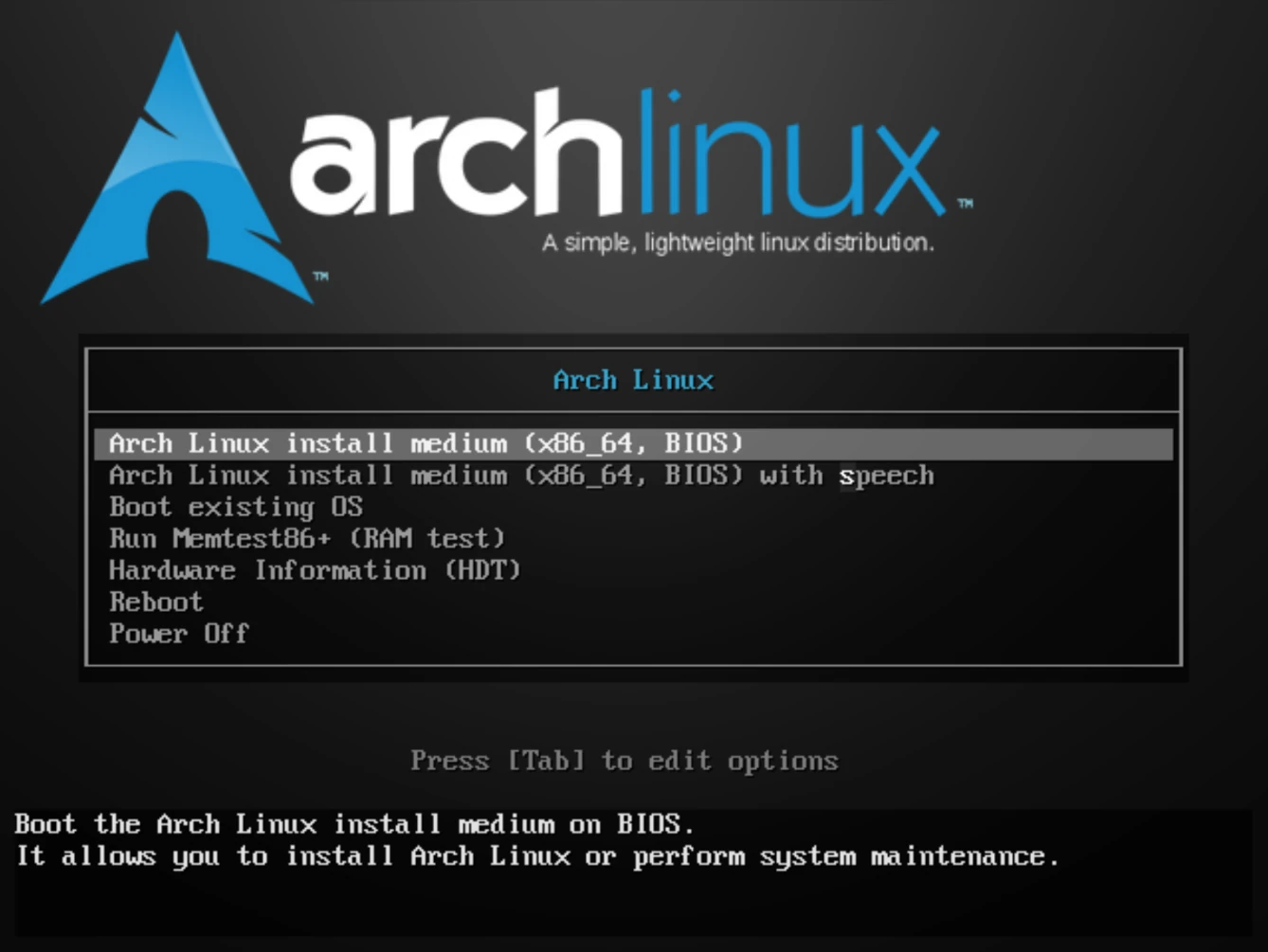
Managing ISO images
Dragonfly allows you to boot ISO images over the network. This is useful for deploying operating systems that are not available in Dragonfly’s included templates.
Open Dragonfly
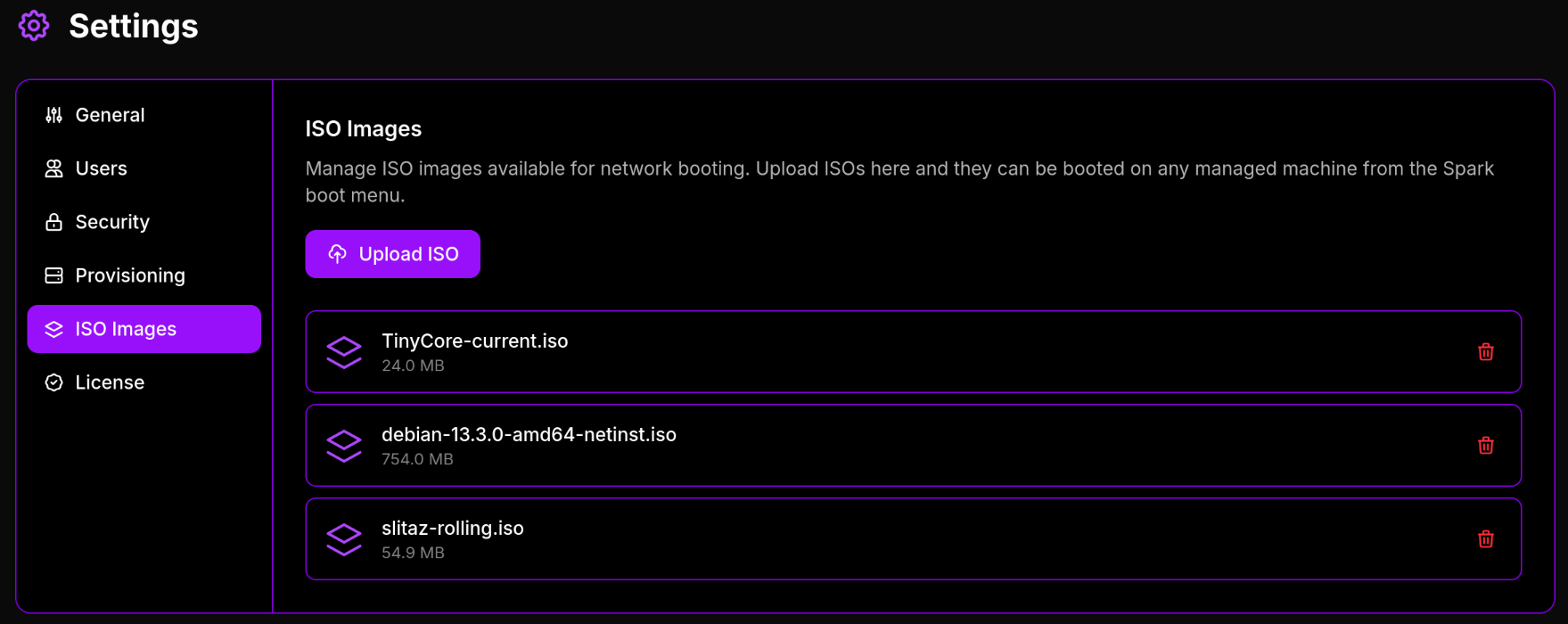
Navigate to your Dragonfly dashboard and go to the Settings page, then select the “ISO Images” option.
Upload ISO Image
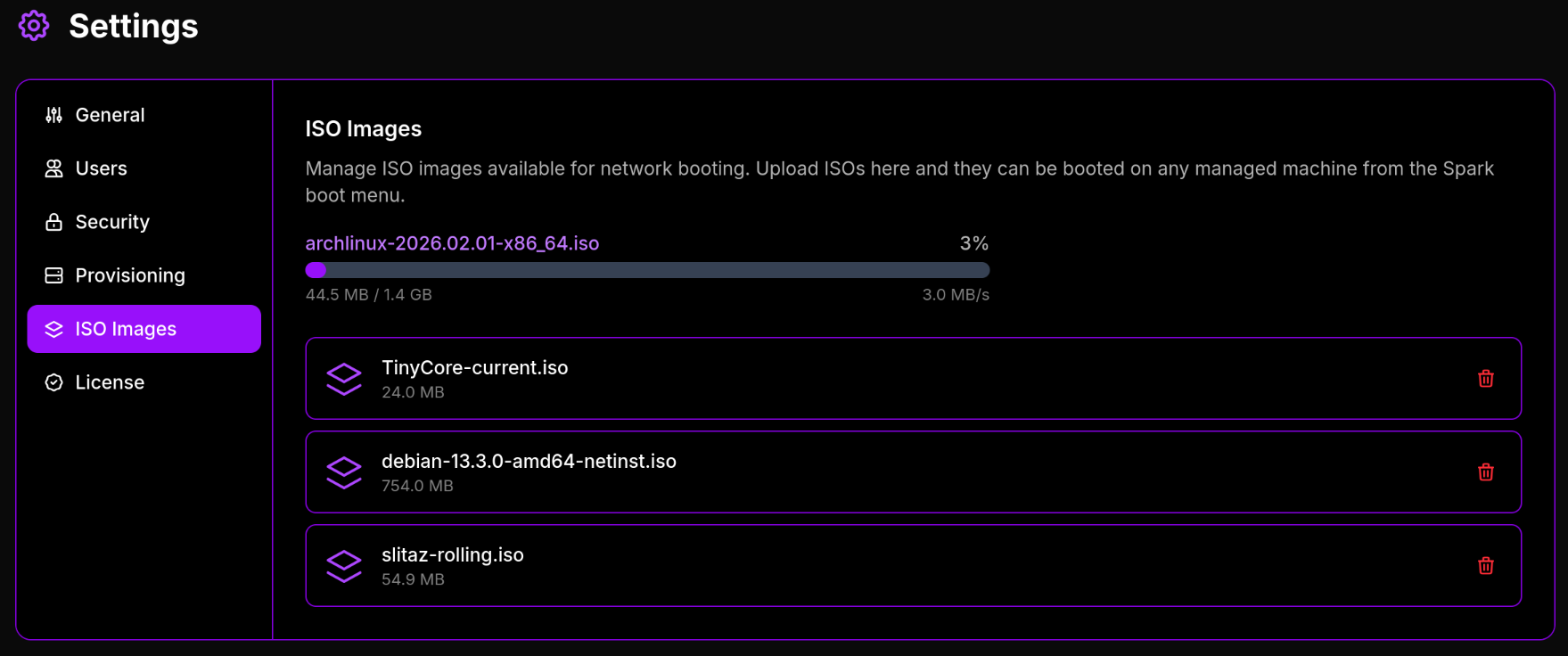
Upload your ISO image file to Dragonfly by clicking the “Upload ISO” button and selecting the file from your local machine.
Select Network Boot
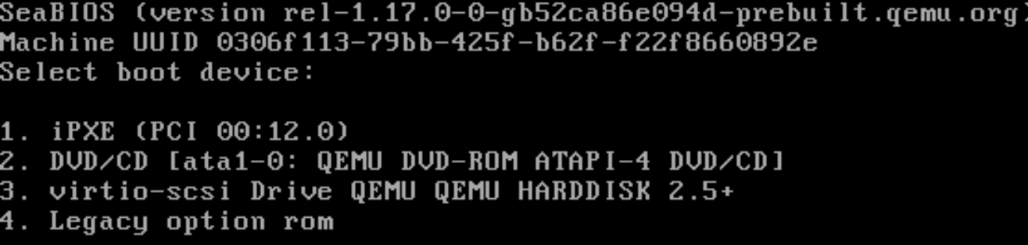
Temporarily or permanently configure your machine to boot from the network.
This may also be referred to as “PXE boot”, “iPXE boot”, or “network boot”.
Start Spark
Turn on your machine and Spark will appear.
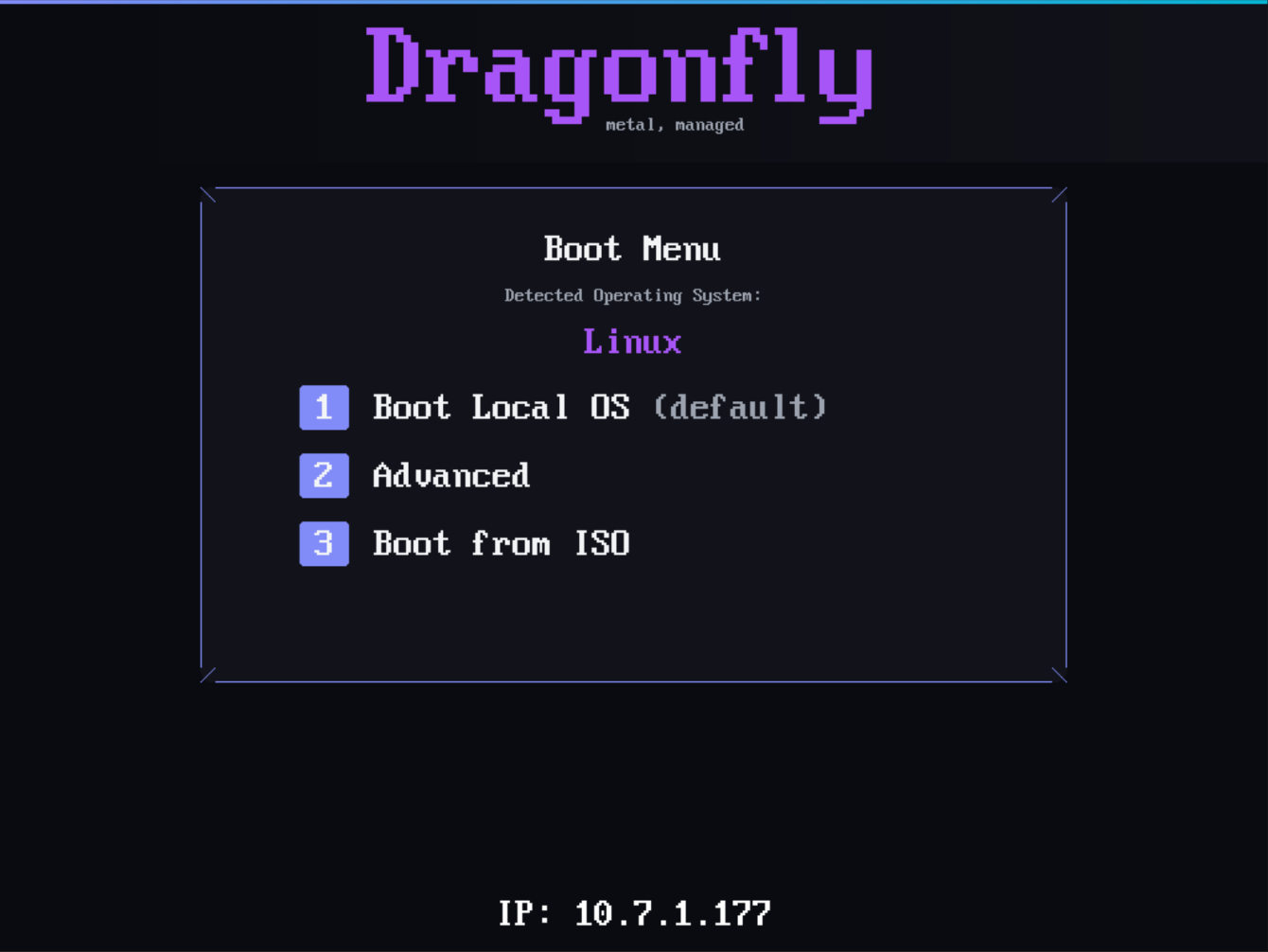
Select Boot from ISO by pressing “3”.
Select your ISO
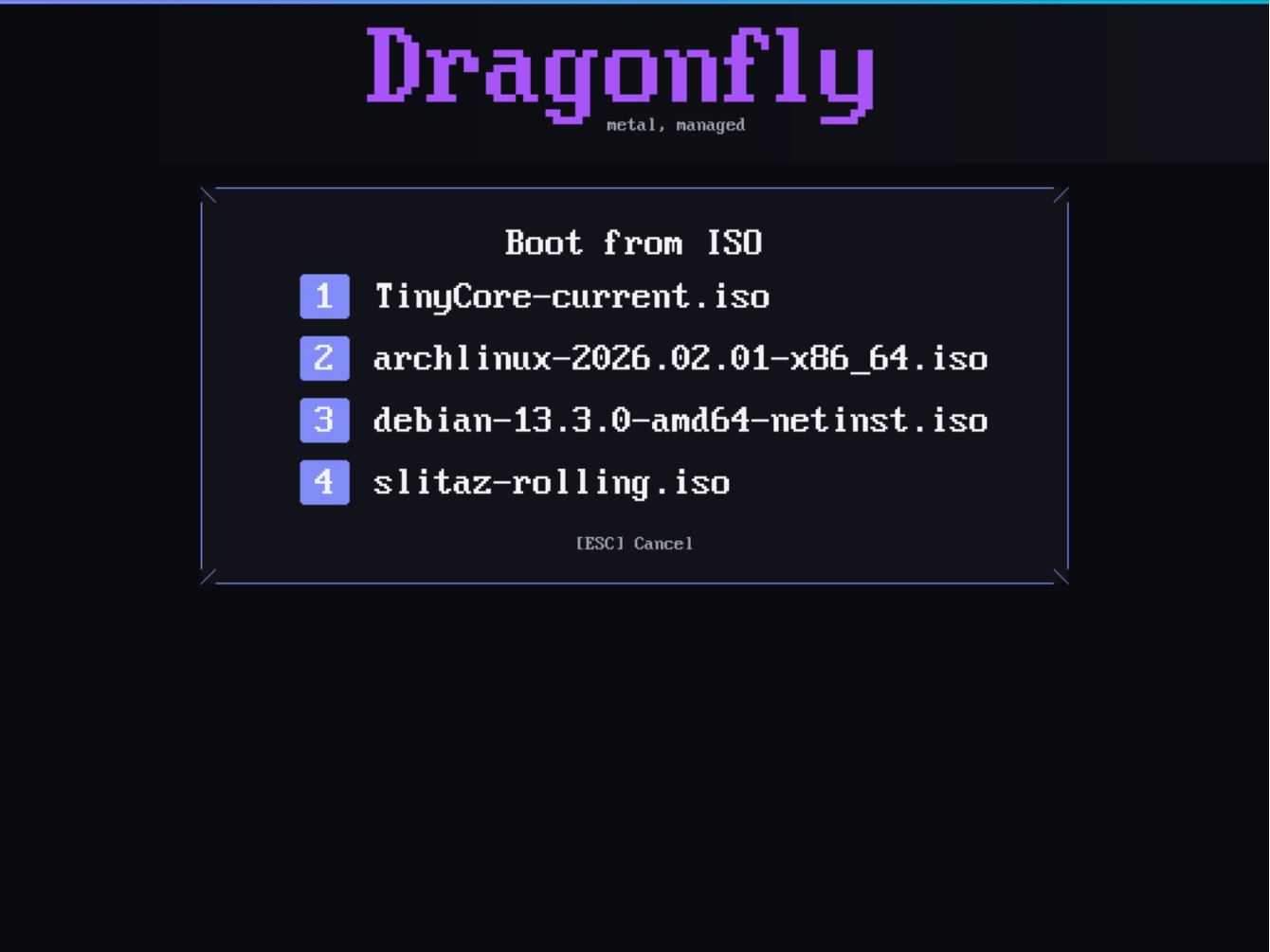
Use the arrow keys to navigate the list of available ISO images, or press the number key for the desired ISO image.
To boot Arch Linux here, we press “2”.
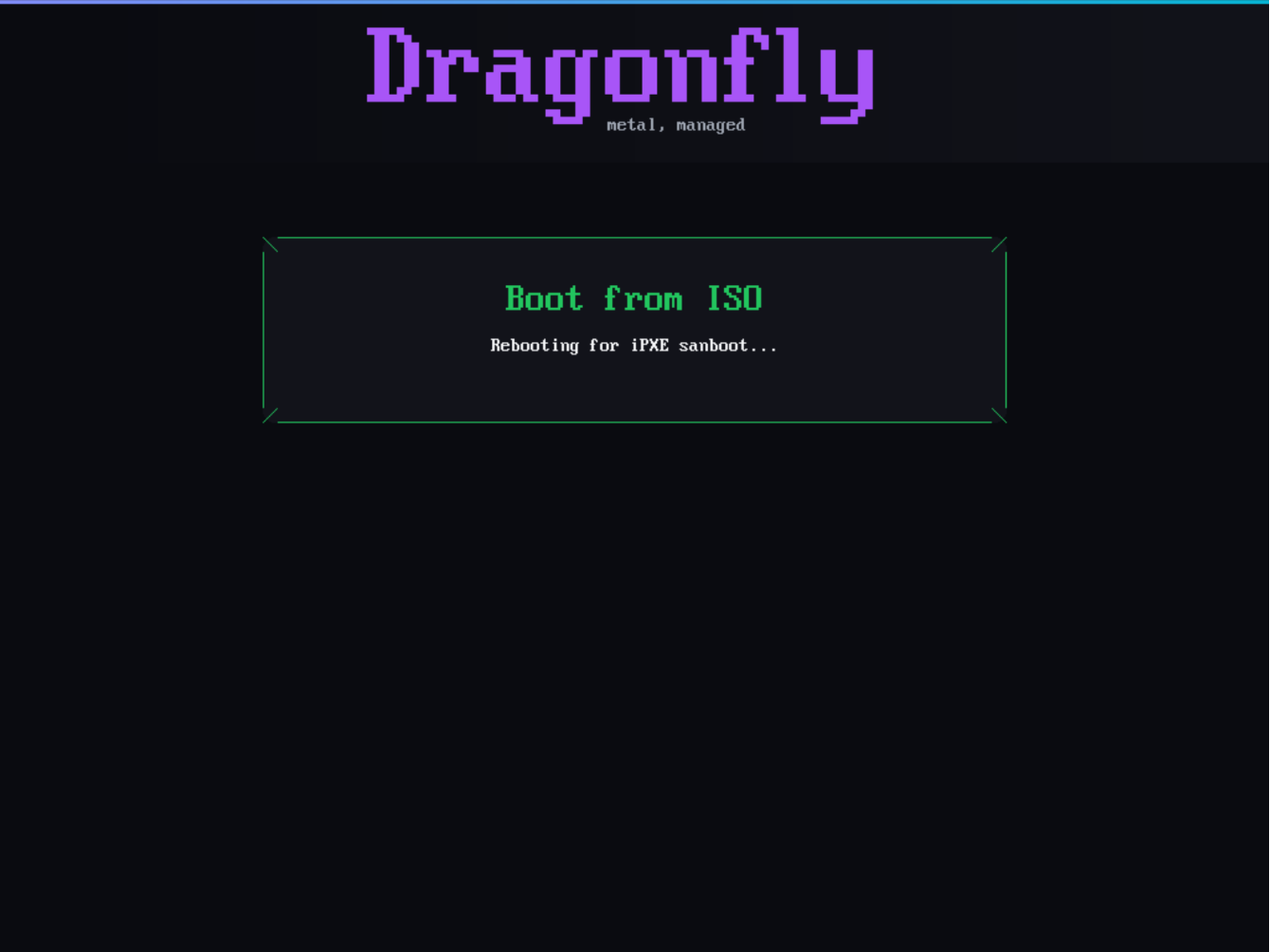
Enjoy
Your ISO image will boot. Here’s what booting Arch Linux looks like: